

The Blue Screen of Death can be quite an upset to see when trying to get work done. How in the world can you even write down the info before the screen is gone? Never fear the solution is here. Download a utility called BlueScreenView and view the exact error and research the solution.
We all know how it is feels to see the Blue Screen of Death (BSOD). Most of us think time for a format and reinstall right? Well, not necessarily - Check out this easy to use utility from Nir Sofer. You run the program straight from the *.exe and it will search your minidump files and allow you to view the error. Then, just research the solution, call your IT/computer guy (hint hint... ME) and you may be one step closer to the solution.
Check out the program here

Showing posts with label PC. Show all posts
Showing posts with label PC. Show all posts
Tuesday, August 25, 2009
Wednesday, August 12, 2009
How to Run Windows XP Defragmenter
 Over time every hard drive in your PC can and will become fragmented. As the fragmentation gets worse the overall speed and performance will progressively get worse. The Windows XP Defragmenter utility will reorganize your hard disk and place the empty unused space at the end of the drive. This will help increase access and read speeds of your hard disk drives.
Disk Defragmenter can be accessed by navigating to My Computer then right clicking on your hard drive and choosing properties. From there go to the second tab labeled Tools.

In the middle of the box there will be the Defragment Now button. Go ahead and left click that to open the Disk Defragmenter.
This will open the Defragmenter utility. From here there are a couple things you should know.
1. You should have at least 15% free space on each hard drive you plan to defragment. You can defragment with less but it is not recommended.
2. Once you start the defragment process it could take several hours to defragment each hard drive. I usually start the process and let it run over night, and overall computer performance will be poor, and working while running the defragmenter kind of defeats the purpose.
If you are unsure if you need to defragment a drive click the analyze button and run the test to determine the amount of disk fragmentation. From there you can either close the program or click the Deframent button based on the test results.
That pretty much sums up the Defragmenter utility. If you have questions/comments/additions please contact us.
NinjaCompTeam
Friday, August 7, 2009
5 Tips to Speed up Your Windows XP Computer
Does your computer seem to be going slower and slower? Are programs slower to load? Do you have random pop up ads that seem to appear from out of nowhere? If so keep reading for some helpful tips on how to restore the performance of your Windows XP System. Have a tip that wasn't listed here? Post them in the comments sections below.
1. One way to speed up your PC performance is to use the disk cleanup function. You can find this by double clicking on 'My Computer'. Then right click on your C:\ Hard drive and choose Properties. If you have done it correctly it will look like the image below:
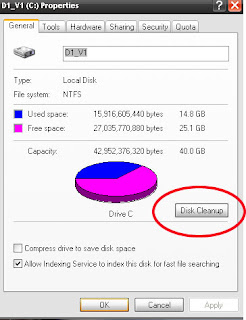
Click on 'Disk Cleanup'. It will then calculate how much free space you can free up. Check the boxes to choose what items you want to clean up, making sure not to delete files you may want to keep.It will also compress old files in order to help maximize disk space.
2. Once you have completed that task you can run the Disk Defragmenter. This tool will reorganize the physical location of files on your hard drive and move as much free space together on the drive. ** NOTE: Your folder structure will not be moved or changed during this process.
You can access the disk defragmenter by clicking Start -> All Programs -> Accessories -> System Tools -> Disk Defragmenter. A future article will go into more detail on how to use the Disk Defragmenter tool.
3. In order to eliminate your popup ads you will want to download a program such as Lavasoft Ad-aware. This version is the free one, but they also an excellent paid version that is more than worth the money. Download and install this program. Run Ad-Aware and choose a 'Full System' Scan. Make sure to download the current spyware definitions through the program.
4. Antivirus - Anti Virus is an essential in today's computing world. There are many paid and free antivirus options. The free antivirus I recommend is AVG Antivirus Free. As with Ad-aware there are also excellent paid options as well.
I recommend staying away from all encompassing programs such as Norton and McAfee as they tend to slow down performance and can be a pain to setup and configure. But spending some time with those programs can also yield the desired results.
5. remove unwanted programs. Unwanted programs can take up hard drive space and also cause undesired computer operation. Use the Add/Remove Programs utility from the control panel to remove unwanted programs. In some cases a program will install
unwanted programs you are unaware of. When installing programs look out for check boxes in order to avoid installing unwanted programs.
Hopefully these 5 tips help to improve performance on you Windows XP computer. If you have questions or need help ask in the comments.
if you ave additional tips please post them in the comments. Remember this is advice only. We are not held liable, nor is there any warranty expressed or implied by following the instructions in this blog. Follow directions at your own risk.
NinjaCompTeam
1. One way to speed up your PC performance is to use the disk cleanup function. You can find this by double clicking on 'My Computer'. Then right click on your C:\ Hard drive and choose Properties. If you have done it correctly it will look like the image below:

Click on 'Disk Cleanup'. It will then calculate how much free space you can free up. Check the boxes to choose what items you want to clean up, making sure not to delete files you may want to keep.It will also compress old files in order to help maximize disk space.
2. Once you have completed that task you can run the Disk Defragmenter. This tool will reorganize the physical location of files on your hard drive and move as much free space together on the drive. ** NOTE: Your folder structure will not be moved or changed during this process.
You can access the disk defragmenter by clicking Start -> All Programs -> Accessories -> System Tools -> Disk Defragmenter. A future article will go into more detail on how to use the Disk Defragmenter tool.
3. In order to eliminate your popup ads you will want to download a program such as Lavasoft Ad-aware. This version is the free one, but they also an excellent paid version that is more than worth the money. Download and install this program. Run Ad-Aware and choose a 'Full System' Scan. Make sure to download the current spyware definitions through the program.
4. Antivirus - Anti Virus is an essential in today's computing world. There are many paid and free antivirus options. The free antivirus I recommend is AVG Antivirus Free. As with Ad-aware there are also excellent paid options as well.
I recommend staying away from all encompassing programs such as Norton and McAfee as they tend to slow down performance and can be a pain to setup and configure. But spending some time with those programs can also yield the desired results.
5. remove unwanted programs. Unwanted programs can take up hard drive space and also cause undesired computer operation. Use the Add/Remove Programs utility from the control panel to remove unwanted programs. In some cases a program will install
unwanted programs you are unaware of. When installing programs look out for check boxes in order to avoid installing unwanted programs.
Hopefully these 5 tips help to improve performance on you Windows XP computer. If you have questions or need help ask in the comments.
if you ave additional tips please post them in the comments. Remember this is advice only. We are not held liable, nor is there any warranty expressed or implied by following the instructions in this blog. Follow directions at your own risk.
NinjaCompTeam
Thursday, August 6, 2009
All About PC Hardware from - Maximum PC
Maximum PC has a great article about 22 PC parts Exposed. This is a pretty interesting article and I recommend checking it out.
22 PC Parts Exposed
22 PC Parts Exposed
Tuesday, August 4, 2009
Upgrading a PC – Part I
Welcome to part I of a multipart series on how to upgrade a PC. Some of you may have an older PC that just doesn’t cut it in the way of performance, graphics or storage space. There are several hardware aspects that can be easily upgraded even by a total beginner that can transform ad older computer into a respectable computer machine.
In part I will discuss the different types or hardware. Part II will discuss the different plugs and connectors, how to recognize them and how to research your system. Part III will discuss how to physically upgrade the components.
PCs can be versatile in the way of upgrading. Typically consumers upgrade hard disk drives (HDD), video cards, and RAM. The processor and power supply can also be upgraded as well as many the mechanism for cooling your PC.
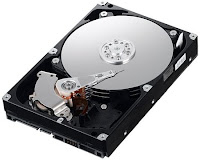
HARD DISK DRIVES
Let us begin with the hard disk drive (from here on HDD). Consumer hard drives typically come in two flavors; Internal and External. Internal HDD can either use an IDE or SATA connector port (see part II for more info). External HDDs are typically USB or FireWire although eSATA connectors are also available. For the scope of this article I will focus on internal HDDs since external drives are pretty much plug and play.
All hard drives have cache and speed ratings. If you are adding a HDD for storage a speed of 7200 rpm and 16 or 32 Mb of cache is pretty typical. Personally I like Western Digital or Seagate HDDs although Maxtor and Fujitsu also manufacture HDDs. The price of storage has dropped dramatically with the typical price being less than $1.00 per Gigabyte. If you are needing to add storage space for media such as video, music or photos I recommend either purchasing a 1 terabyte HDD (roughly 1000 Gigabytes) or a 720 Gigabyte HDD. That may sound excessive but storage space goes fast and you want some extra room to grow into the drive.
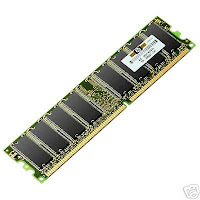
RAM
RAM is another aspect of the computer that can be easily upgraded. People often refer to this piece of hardware as the memory of a computer. Windows XP ® for example recommends 512Kb or RAM when running the OS, but the more RAM you are able to add to a system the better off you will be. Think of RAM as workers at a factory. If you have 512 workers and the tasks you wanting to perform require 1024 workers, those 512 have to do perform multiple jobs. The same thing happens with your computer. The more programs you open the more RAM you need to run those programs. Most RAM can be purchased today in 512 Mb, 1024 Mb (1 gig), 2 gig and 4 gig. If you are running Windows XP ® your system can only handle 4 gigs or RAM. Windows Vista and Windows 7 can handle more RAM than that. There are many different speeds of RAM as well as different types. More on that in Part II.
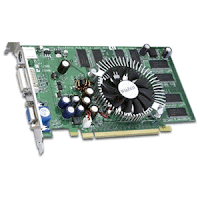
VIDEO CARD
The video card is the hardware that controls the visualization and graphics of your computer. Video cards can either be onboard, meaning they are built into the motherboard or they can use slots in the motherboard to connect to the system. Typical connectors are AGP, and PCI express. AGP and PCI express have different slots, and different speeds and will be discussed in part II. Video cards these days are like mini computers within your computer. There are two main companies that offer their chipsets (Nvidia and ATI) to manufactures (PNY, XFX etc) and they design the rest of the video card for use in your system. Video cards can be fairly complicated but the general theory is the faster the processor and more RAM will have better performance than the lesser processor and RAM. Be sure to compare prices on video cards and some are reasonably priced and some are more expensive without a great performance gain.
PROCESSOR
The processor is the portion of your PC that actually crunches data and does the work of the computer. There are single core, dual core, and quad core processors. A dual core processor has (2) single core processor in one chip and a quad core processors has (4) single core processors in one chip. Most PCs these days are available with a dual core processor (Intel or AMD) or quad core processor. This allows the PC in theory to process twice as many processes as the single core processor. Motherboards have processor sockets that the processor connects to. There are many types of sockets (LGA 775, Socket 7 etc) and you need to match your motherboard and processor so they will be compatible.
POWER SUPPLY
The power supply is the unit that converts power from the wall socket to power your PC can use. Power supplies have a wattage rating and you need to match the wattage of the power supply to what you will be running in your PC. A good rule to follow is once you are out of power plugs it might be time to consider upgrading power supply. You can also add up the total wattage specs of each component to make sure you are not overloading the power supply. If you are upgrading existing equipment you should be ok with the power supply you currently have.
Part II will explain in more detail each component and how it connects to the motherboard in your PC. Hopefully photos will be available at that point as well.
Please note this article is merely based to be informative. If you find errors or inaccuracies please send us an email and we will correct it. Any advice in this article, or this blog are to be used at your own risk, and we take no responsibility for harm or damages caused by this article or blog.
LINKS:
Western Digital
Intel
Nvidia Graphics
Peace,
Ninja Computer Team
In part I will discuss the different types or hardware. Part II will discuss the different plugs and connectors, how to recognize them and how to research your system. Part III will discuss how to physically upgrade the components.
PCs can be versatile in the way of upgrading. Typically consumers upgrade hard disk drives (HDD), video cards, and RAM. The processor and power supply can also be upgraded as well as many the mechanism for cooling your PC.

Let us begin with the hard disk drive (from here on HDD). Consumer hard drives typically come in two flavors; Internal and External. Internal HDD can either use an IDE or SATA connector port (see part II for more info). External HDDs are typically USB or FireWire although eSATA connectors are also available. For the scope of this article I will focus on internal HDDs since external drives are pretty much plug and play.
All hard drives have cache and speed ratings. If you are adding a HDD for storage a speed of 7200 rpm and 16 or 32 Mb of cache is pretty typical. Personally I like Western Digital or Seagate HDDs although Maxtor and Fujitsu also manufacture HDDs. The price of storage has dropped dramatically with the typical price being less than $1.00 per Gigabyte. If you are needing to add storage space for media such as video, music or photos I recommend either purchasing a 1 terabyte HDD (roughly 1000 Gigabytes) or a 720 Gigabyte HDD. That may sound excessive but storage space goes fast and you want some extra room to grow into the drive.

RAM
RAM is another aspect of the computer that can be easily upgraded. People often refer to this piece of hardware as the memory of a computer. Windows XP ® for example recommends 512Kb or RAM when running the OS, but the more RAM you are able to add to a system the better off you will be. Think of RAM as workers at a factory. If you have 512 workers and the tasks you wanting to perform require 1024 workers, those 512 have to do perform multiple jobs. The same thing happens with your computer. The more programs you open the more RAM you need to run those programs. Most RAM can be purchased today in 512 Mb, 1024 Mb (1 gig), 2 gig and 4 gig. If you are running Windows XP ® your system can only handle 4 gigs or RAM. Windows Vista and Windows 7 can handle more RAM than that. There are many different speeds of RAM as well as different types. More on that in Part II.

VIDEO CARD
The video card is the hardware that controls the visualization and graphics of your computer. Video cards can either be onboard, meaning they are built into the motherboard or they can use slots in the motherboard to connect to the system. Typical connectors are AGP, and PCI express. AGP and PCI express have different slots, and different speeds and will be discussed in part II. Video cards these days are like mini computers within your computer. There are two main companies that offer their chipsets (Nvidia and ATI) to manufactures (PNY, XFX etc) and they design the rest of the video card for use in your system. Video cards can be fairly complicated but the general theory is the faster the processor and more RAM will have better performance than the lesser processor and RAM. Be sure to compare prices on video cards and some are reasonably priced and some are more expensive without a great performance gain.
PROCESSOR
The processor is the portion of your PC that actually crunches data and does the work of the computer. There are single core, dual core, and quad core processors. A dual core processor has (2) single core processor in one chip and a quad core processors has (4) single core processors in one chip. Most PCs these days are available with a dual core processor (Intel or AMD) or quad core processor. This allows the PC in theory to process twice as many processes as the single core processor. Motherboards have processor sockets that the processor connects to. There are many types of sockets (LGA 775, Socket 7 etc) and you need to match your motherboard and processor so they will be compatible.
POWER SUPPLY
The power supply is the unit that converts power from the wall socket to power your PC can use. Power supplies have a wattage rating and you need to match the wattage of the power supply to what you will be running in your PC. A good rule to follow is once you are out of power plugs it might be time to consider upgrading power supply. You can also add up the total wattage specs of each component to make sure you are not overloading the power supply. If you are upgrading existing equipment you should be ok with the power supply you currently have.
Part II will explain in more detail each component and how it connects to the motherboard in your PC. Hopefully photos will be available at that point as well.
Please note this article is merely based to be informative. If you find errors or inaccuracies please send us an email and we will correct it. Any advice in this article, or this blog are to be used at your own risk, and we take no responsibility for harm or damages caused by this article or blog.
LINKS:
Western Digital
Intel
Nvidia Graphics
Peace,
Ninja Computer Team
Subscribe to:
Posts (Atom)